
Skip to content
  • Overview
  • Features
  • Try MailVault
  • Service Provider Edition
  • Pricing
  • Support
  • Blog
  • Contact
Releases, Using MailVault

How to backup and archive email into MailVault

June 23, 2010 Team MailVault No comments yet

MailVault can backup and archive email in a number of ways.

It can “pull” mail from corporate mail servers and public mail servers, parse multiple mailbox formats, pick up randomly scattered mail from the filesystem and read messages from selected email clients. MailVault can also accept email “pushed” to it via the SMTP protocol.

In cases where there is no mail server running, the MailVault Agent installed on remote machines enables users to backup email from their email clients into MailVault.
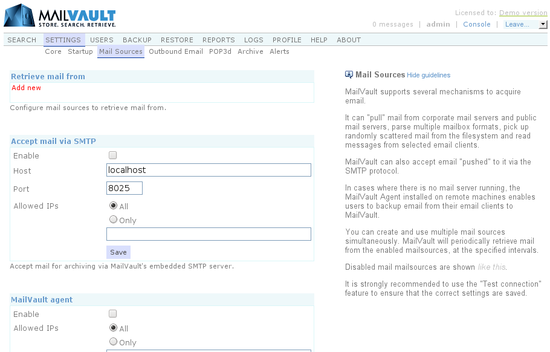
 
Mail sources in MailVault

For those familiar with email, MailVault’s capabilities include:

  • Support for network oriented protocols like POP3, IMAP and SMTP thus ensuring connectivity with any standard corporate email server (Microsoft Exchange, Lotus Notes, Postfix, Qmail, Sendmail, PostMaster, MDaemon, VPOP3, etc.)
  • Support for filesystem based mail sources like Unix mbox, Maildir, regular directories with individual email files (.eml / standard RFC 822 format)
  • Convenient wrappers for public email proividers like GMail, Yahoo, Rediffmail
  • Can read email from email clients like Microsoft Outlook, Outlook Express, Windows Mail, Windows Live Mail and Thunderbird
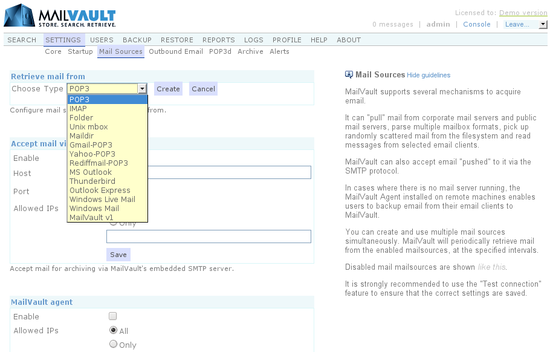
 
Types of Mail Sources

Inspite of all this power and flexibility, using MailVault is quite simple. Let’s look at setting up a mail source.

Configuring a mail source (Generic steps)

For the MailVault administrator, setting up a mail source simply boils down to the following generic steps:

 
  1. Go to Settings > Mail Sources
  2. To add a new mail source, click “Add new”
  3. From the drop down list, choose a mail source and press “Create”
  4. Configure the mail source specific settings
  5. Press Test to check if the settings are correct
  6. If all is well, press Save
 

That’s it. MailVault now begins the backup and archive process.


Configuring a POP3 mail source

Most email servers support copying or journaling all email that flows through them into a mailbox, which is POP3 enabled. MailVault can then periodically pickup email from this ‘archive’ mailbox using the POP3 protocol. This makes the POP3 mail source one of the most popular and recommended ways of using MailVault with your mail server. Let’s see how a POP3mail source is configured.

 
  • Go to Settings > Mail Sources
  • Click on Add new
  • Choose POP3 from the drop down
 
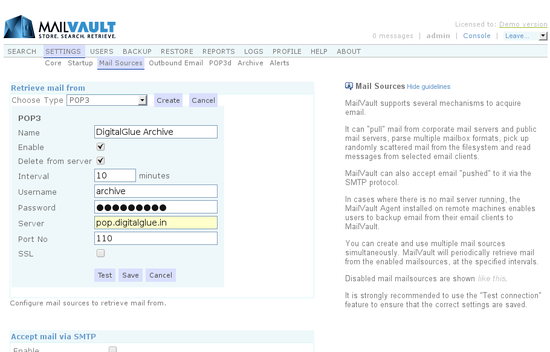
Configuring a POP3 mail source
 

With reference to the image above:

 
  1. Make the name an easy identifier (espcially if you are going to use multiple mail sources)
  2. Ensure the mail source is enabled (default is ON)
  3. We’d like to delete messages from the POP3 box once retrieved into MailVault
  4. Poll the mail source every 10 minutes
  5. Enter the POP3 mailbox username
  6. Enter the POP3 mailbox password
  7. Provide the host name
  8. Check the port is correct (default is 110)
 

As a good practice, at this point we recommend highly that you press the Test button. Ensure that you get a “Connection successful” message and then save the mail source.


Get a cup of coffee, sit back and relax while MailVault archives your email… 🙂

  • email archiving
  • email backup
  • mailvault releases
  • mailvault security
  • secure access to mailvault
  • secure email backup
Team MailVault

Post navigation

Previous
Next

Categories

  • Announcements (10)
  • Blog (1)
  • Google Workspace (7)
  • MailVault Agent (3)
  • Microsoft 365 (6)
  • Releases (91)
  • Support (1)
  • Trends (3)
  • Using MailVault (66)

Recent posts

  • MailVault v6.1.4 released
  • MailVault v6.1.3 released (CAPTCHA, security advisories)
  • MailVault v6.1.2 released
  • MailVault v6.1.1 released

Tags

access email archive from outlook access email archive from thunderbird archive management archive manager central storage for email cloud storage for email compliance ediscovery email archival email archive management email archive space usage forecast email archiving email archiving solutions email backup email monitoring email restore google workspace GWS IMAP archiving journal account M365 mailvault cloud mailvault configuration mailvault installation mailvault releases mailvault security mailvault vps messaging surveillance microsoft 365 monitor email server OAuth 2.0 for email outlook backup outlook express backup PST backup PST restore restore via POP3 search email archive searching email search results secure access to mailvault secure email backup security thunderbird backup two-factor authentication (2FA) user management

Related posts

Releases, Using MailVault

MailVault v6.1.4 released

May 5, 2025 Team MailVault No comments yet

MailVault v6.1.4 is available. This release contains: Enhanced POP3 and IMAP mail sources for better handling of large mailboxes Some security related enhancements Other minor fixes and enhancements You can manually upgrade your MailVault installation by going to: Settings > Core > Auto updates and click on Check for updates Then simply follow the on-screen […]

Releases, Using MailVault

MailVault v6.1.3 released (CAPTCHA, security advisories)

March 27, 2025 Team MailVault No comments yet

MailVault v6.1.3 is available. This release contains: Introduced the use of CAPTCHA during user login (optional) Enforce that users change their password on next login (optional) Some security related advisories applied You can manually upgrade your MailVault installation by going to: Settings > Core > Auto updates and click on Check for updates Then simply […]

Releases, Using MailVault

MailVault v6.1.2 released

January 28, 2025 Team MailVault No comments yet

MailVault v6.1.2 is available. This release contains: Minor fixes and enhancements You can manually upgrade your MailVault installation by going to: Settings > Core > Auto updates and click on Check for updates Then simply follow the on-screen instructions.

Secure Your Organization's Valuable Emails with MailVault – M365 & Google Workspace Ready (works with any email service provider actually)

Important Links
  • MailVault SPE
  • Support
  • Blog
  • Privacy Policy
Resources
  • Overview
  • Features
  • Try MailVault
  • Pricing
Contact
  • DigitalGlue, 15 Creative Industries, Sunder Nagar, Road No. 2, Kalina, Santacruz (East), Mumbai, India
  • Sales & General: +91 22 40040548 / +91 22 49731418
    Technical Support: +91 22 49731418
  • info@digitalglue.in

© Copyright 2025, MailVault. All Rights Reserved.