

Skip to content
  • Overview
  • Features
  • Try MailVault
  • Service Provider Edition
  • Pricing
  • Support
  • Blog
  • Contact
Releases, Using MailVault

First steps after installing MailVault

August 6, 2009 Team MailVault No comments yet

There is a book that goes by the name of “What to say, after saying Hello” (or something like that!). A WHOLE BOOK? I guess human beings are complex creatures.


Fortunately, interacting with MailVault isn’t anywhere near as complex. Inspite of all it’s power and flexibility, it is simple to use. For a new setup, on-screen instructions and hints guide through the few basic steps required to get going.


Here is the 1-2-3-4 of configuring MailVault once you’ve installed it.


Logging in


The preset username and password for MailVault is “admin” and “password”. A notice on the login page displays these details and will stay visible on the login page until the admin password is changed.
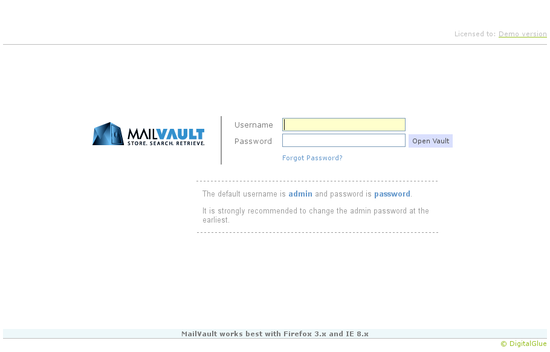
 
MailVault Login Screen
 

Needless to say, it is strongly recommended to change the admin password at the earliest.


Basic configuration


On logging in, the main page (which happens to be the Search page) of the application is displayed. Obviously there is no point in executing a Search right now… 🙂


In the area under the search box, are listed the recommended steps for completing the basic configuration. As you complete each one, the line turns from blue to grey.
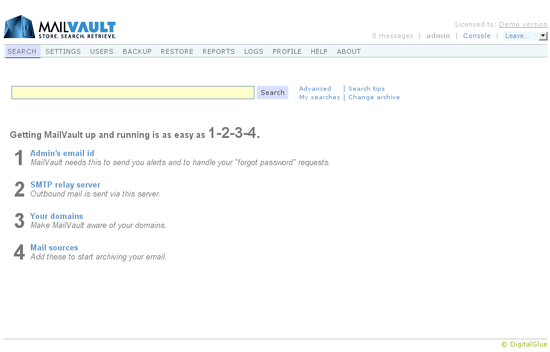
 
MailVault Basic Configuration
 

Let’s take them in order:


1. Admin’s email id


Specify a valid email-id for the administrator. This will be used as the sender email-id for mail originating from MailVault (alerts, search result forwarding, etc.). Additionally, in case you forget your password, this will be needed to reset your password.


To set the email id, go to Users > User list and edit the Administrator entry.


2. SMTP relay server


MailVault needs a SMTP server through which it can relay mail. Normally this will be your corporate email server.


To set this, go to Settings > Outbound email and fill the relevant information.


3. Your domains


These are used to identify your corporate email from other external mail and can be set at Settings > Core > My domains.


4. Mail sources


MailVault acquires mail using mail sources. Many types of mail sources are supported, but the most commonly used one is POP3.


Head over to Settings > Mail Sources > Retrieve mail from and click on “Add new”.


Once all of these items are configured, MailVault will no longer display these hints on the main Search page.


Basically that’s it. MailVault will now begin the process of archiving your email.


Other stuff

Now while MailVault does it’s stuff you can go ahead and do other things – like adding some users. Feel free to wander through the various settings and check out the available options. If you don’t feel the need to tinker or customize, no worries – most settings in MailVault have sane default values.


All Settings pages have a “guidelines area” on the right hand side which informs you about the purpose of the page’s settings. Additionally, every setting section on a page has it’s own little “help line” at it’s bottom.

Finally, if you really need to you, can request assistance online at the MailVault site; but we assure you, you won’t need an entire book on what to do after installing MailVault! 🙂

Feel free to tell us about things you liked, didn’t like and how we can make your MailVault experience even better…


  • email archiving
  • email backup
  • mailvault releases
  • mailvault security
  • secure access to mailvault
  • secure email backup
Team MailVault

Post navigation

Previous
Next

Categories

  • Announcements (10)
  • Blog (1)
  • Google Workspace (7)
  • MailVault Agent (3)
  • Microsoft 365 (6)
  • Releases (91)
  • Support (1)
  • Trends (3)
  • Using MailVault (66)

Recent posts

  • MailVault v6.1.4 released
  • MailVault v6.1.3 released (CAPTCHA, security advisories)
  • MailVault v6.1.2 released
  • MailVault v6.1.1 released

Tags

access email archive from outlook access email archive from thunderbird archive management archive manager central storage for email cloud storage for email compliance ediscovery email archival email archive management email archive space usage forecast email archiving email archiving solutions email backup email monitoring email restore google workspace GWS IMAP archiving journal account M365 mailvault cloud mailvault configuration mailvault installation mailvault releases mailvault security mailvault vps messaging surveillance microsoft 365 monitor email server OAuth 2.0 for email outlook backup outlook express backup PST backup PST restore restore via POP3 search email archive searching email search results secure access to mailvault secure email backup security thunderbird backup two-factor authentication (2FA) user management

Related posts

Releases, Using MailVault

MailVault v6.1.4 released

May 5, 2025 Team MailVault No comments yet

MailVault v6.1.4 is available. This release contains: Enhanced POP3 and IMAP mail sources for better handling of large mailboxes Some security related enhancements Other minor fixes and enhancements You can manually upgrade your MailVault installation by going to: Settings > Core > Auto updates and click on Check for updates Then simply follow the on-screen […]

Releases, Using MailVault

MailVault v6.1.3 released (CAPTCHA, security advisories)

March 27, 2025 Team MailVault No comments yet

MailVault v6.1.3 is available. This release contains: Introduced the use of CAPTCHA during user login (optional) Enforce that users change their password on next login (optional) Some security related advisories applied You can manually upgrade your MailVault installation by going to: Settings > Core > Auto updates and click on Check for updates Then simply […]

Releases, Using MailVault

MailVault v6.1.2 released

January 28, 2025 Team MailVault No comments yet

MailVault v6.1.2 is available. This release contains: Minor fixes and enhancements You can manually upgrade your MailVault installation by going to: Settings > Core > Auto updates and click on Check for updates Then simply follow the on-screen instructions.

Secure Your Organization's Valuable Emails with MailVault – M365 & Google Workspace Ready (works with any email service provider actually)

Important Links
  • MailVault SPE
  • Support
  • Blog
  • Privacy Policy
Resources
  • Overview
  • Features
  • Try MailVault
  • Pricing
Contact
  • DigitalGlue, 15 Creative Industries, Sunder Nagar, Road No. 2, Kalina, Santacruz (East), Mumbai, India
  • Sales & General: +91 22 40040548 / +91 22 49731418
    Technical Support: +91 22 49731418
  • info@digitalglue.in

© Copyright 2025, MailVault. All Rights Reserved.